
0.2.0
Blur/Sharpen brush and Smooth Spot Healing
The first update since 0.1.0 reached the beta testers. A new brush for finishing edges, a Spot Healing mode for soft areas like sky, a rebuilt Brush panel, a New Image dialog you pick by shape, and screenshots in feedback.
New
Blur/Sharpen brush
Brush over an edge and it softens a little more with every pass. Switch Mode to Sharpen, or hold Alt, to crisp it instead. It's made for the last step of a retouch: the hard edge of a pasted layer, or the rim of a Spot Healing fix. It looks at everything you can see, so it works across layers, and it paints into the layer you have selected.
Find it in the Heal group of the tool rail, or press R. Size, Hardness and Strength are in the options bar.
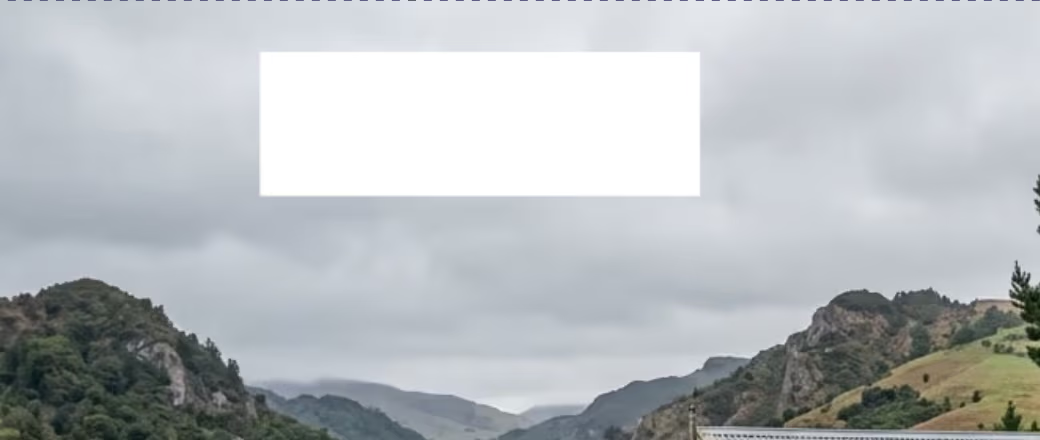 Before
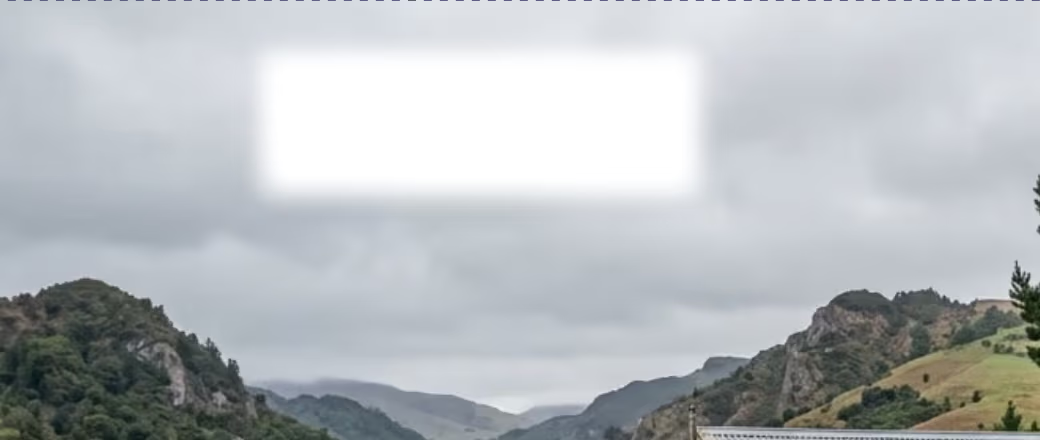 After

Spot Healing ▸ Smooth
A fourth Spot Healing method, for soft areas: sky, walls, bokeh, soft light. Brush over what you want gone and Smooth discards it, then refills the area so the gradients around it carry on straight through, with matching grain so it doesn't look like a patch.
Turn on Include layers below to blend the edge of a pasted layer into whatever it sits on. Smooth only continues what's around it: for texture or structure, stay with Texture or AI.
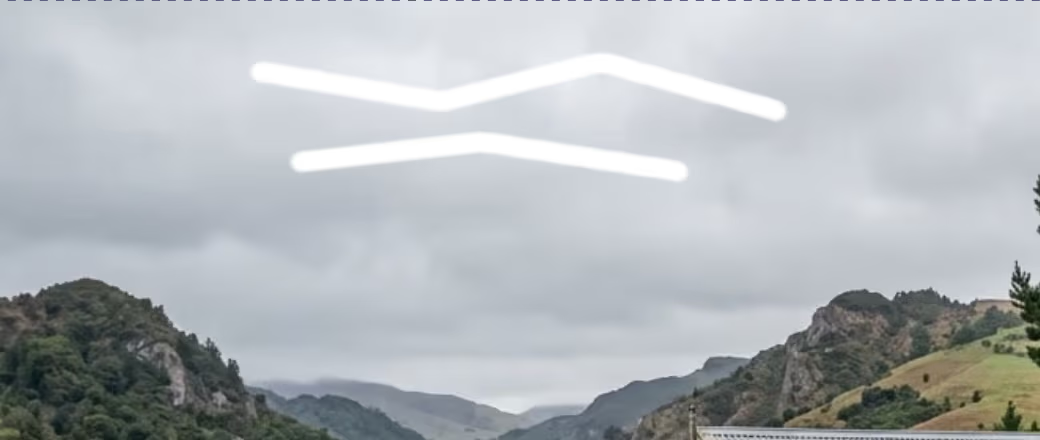 Before
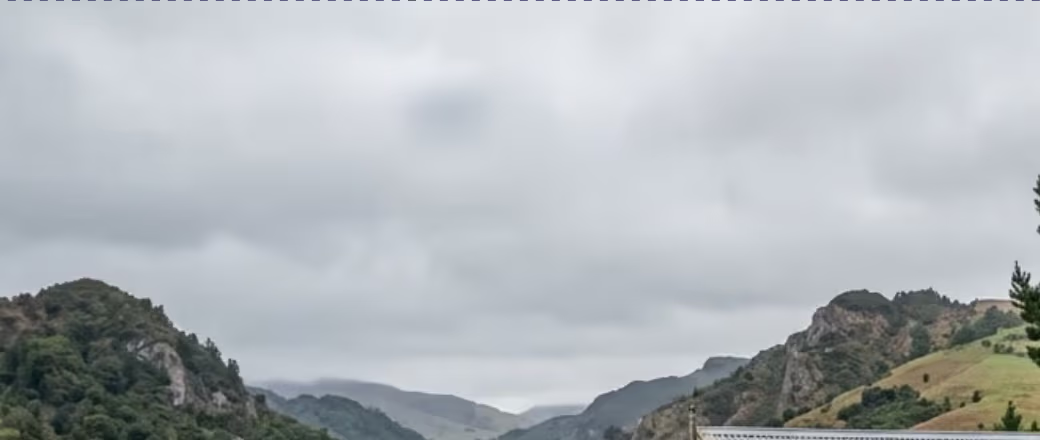 After
A cleaner Brush panel
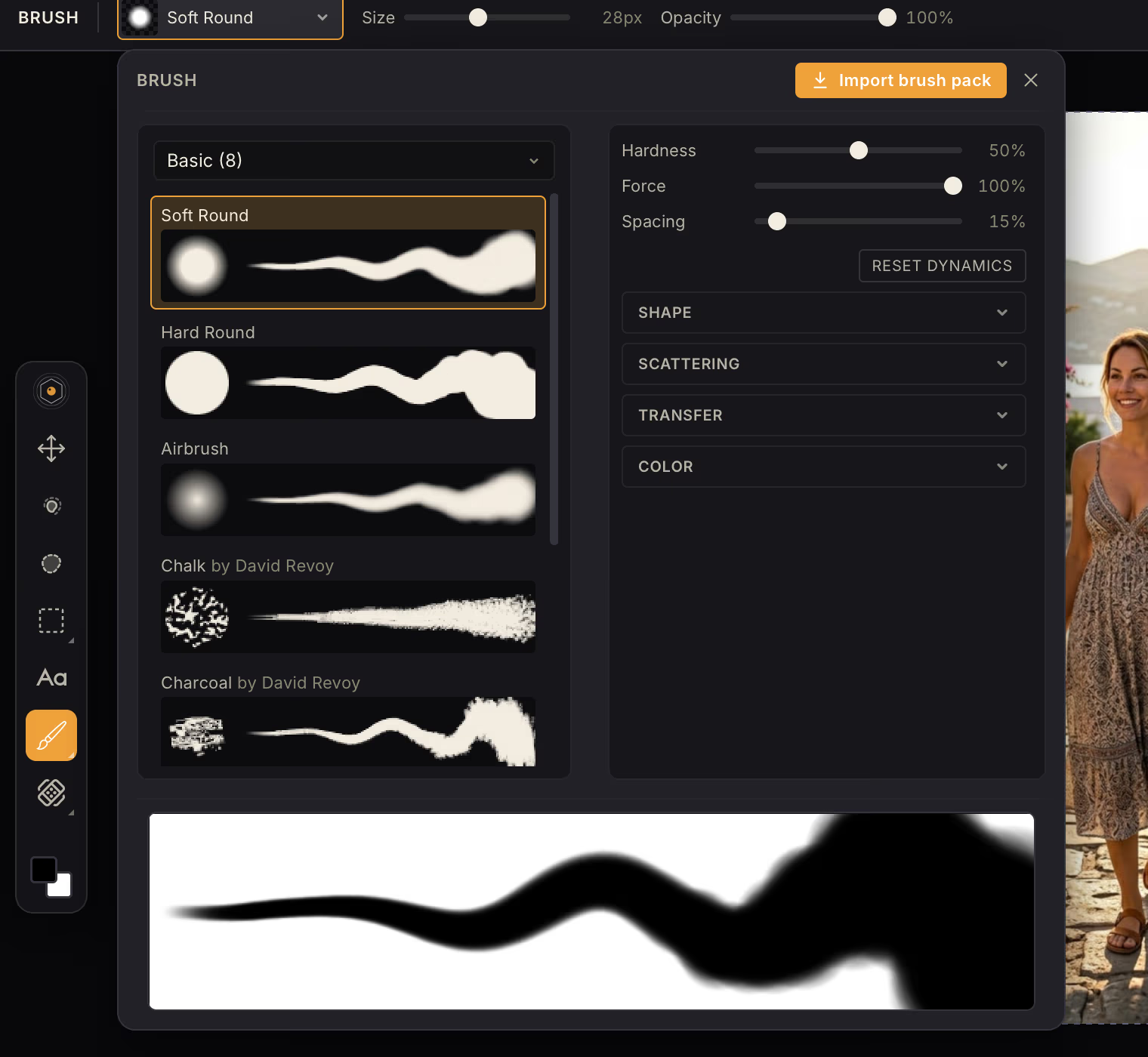
Every brush now shows its tip next to a live stroke preview. The previews scale smoothly with brush size instead of stepping, the stroke no longer re-rolls while you drag a slider, and the big preview paints in your current brush colors. The panel is wider so nothing feels cramped.
The Smoothing slider is gone. It added a lag that was hard to reason about, and strokes are still rounded off on their own.
New Image: pick by shape
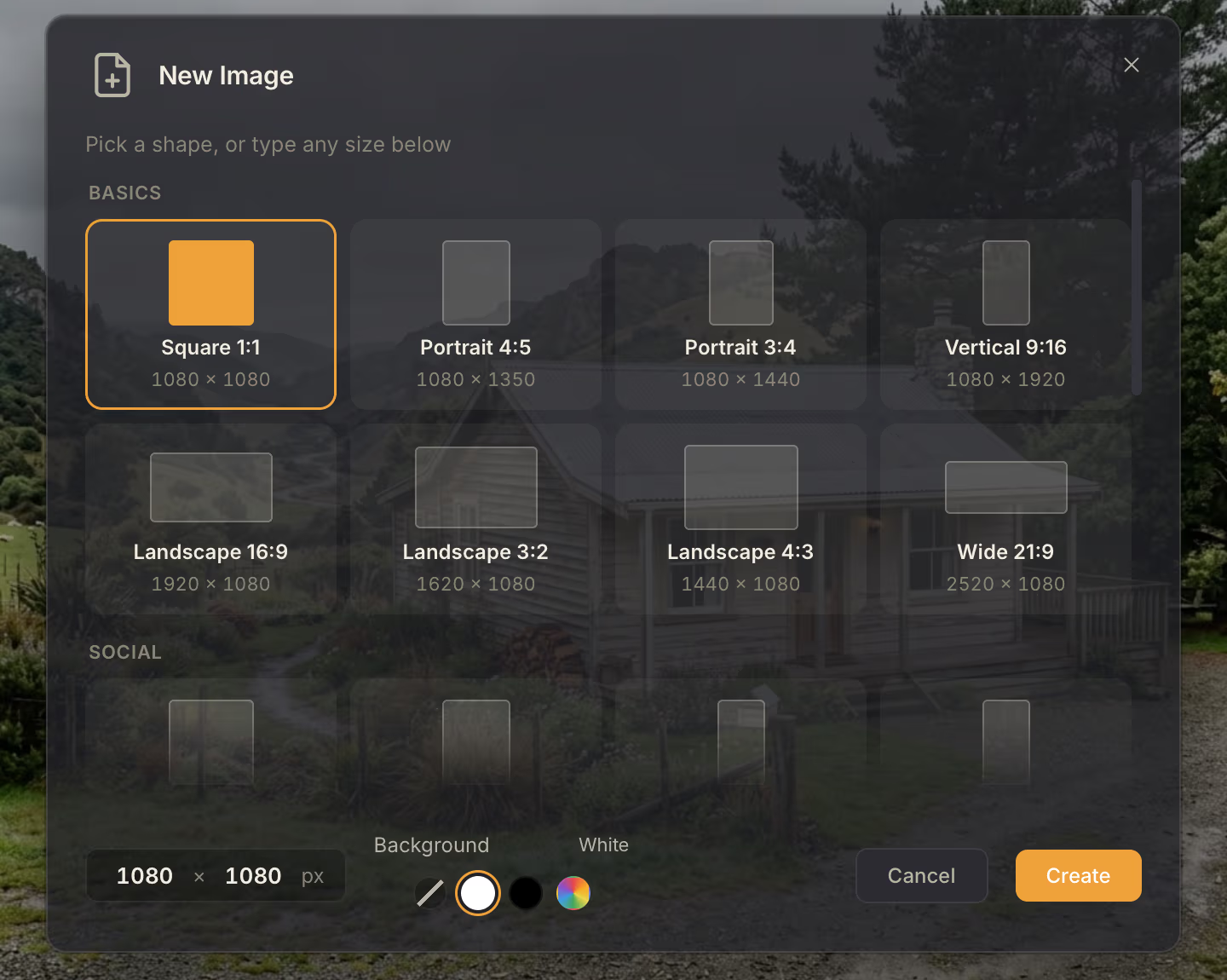
The New Image dialog is now a scrolling gallery of silhouettes: your own formats, Basics, Social, Video, Print and Icons. Basics are named by ratio (Landscape 16:9, Portrait 4:5) at a 1080 px short edge, and platform formats keep the names you know. Landscape A4 and US Letter join the portrait ones.
Documents can now be up to 10,000 px a side, and the zoom-out limit follows the size of your document, so a huge canvas is still easy to take in.
Screenshots in feedback
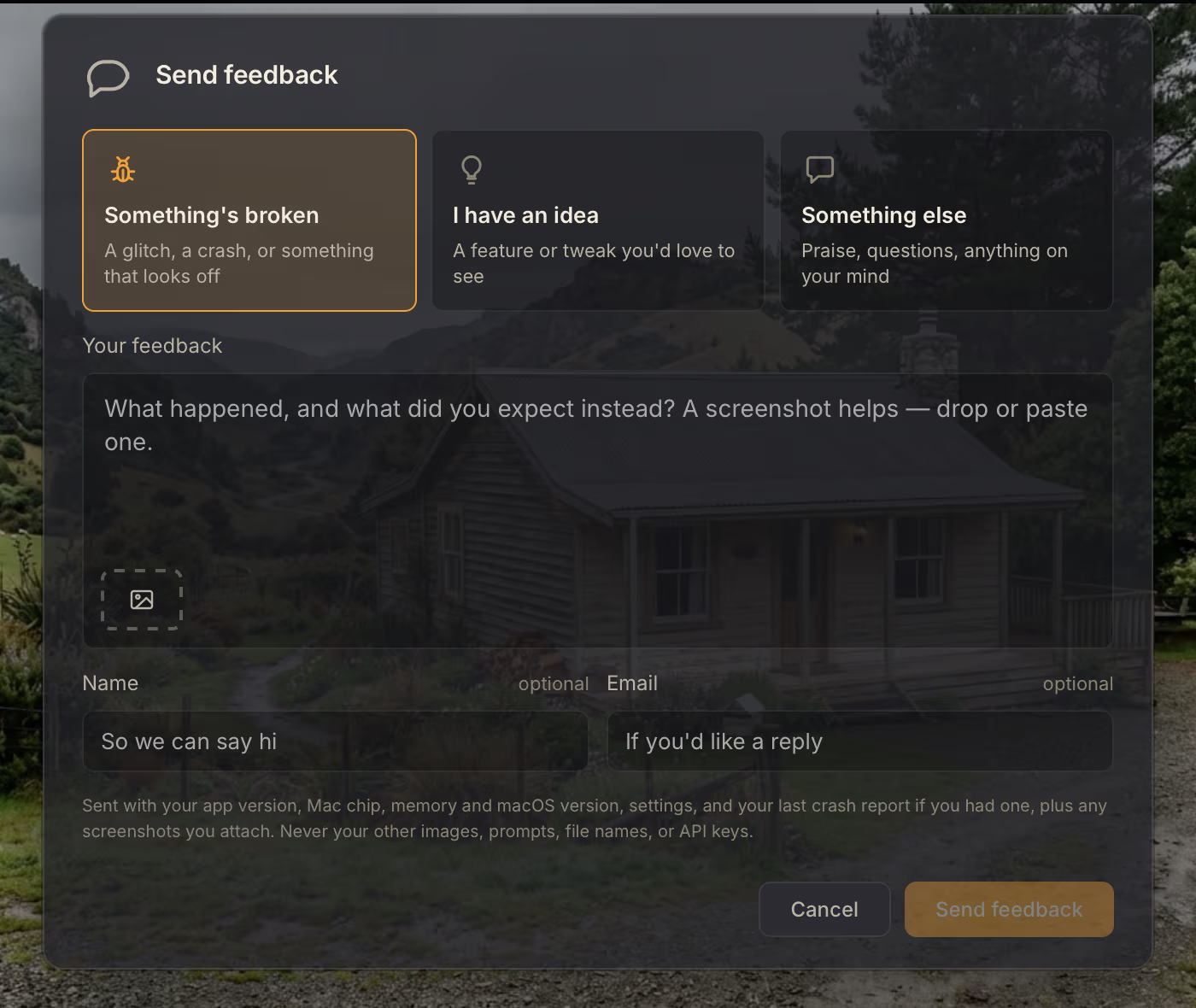
Drop, paste or pick up to three screenshots straight into the feedback form. Three cards replace the dropdown: Something's broken, I have an idea, Something else.
Reports now include your Mac's chip, memory and macOS version, so I can reproduce what you saw without a round of questions. The form lists exactly what is sent, and it's never your other images, prompts or file names.
Improved
-
Nano Banana 2.1
Google's newest image model, available through DepthField Cloud or with your own fal or Wavespeed key. It's now the default wherever Nano Banana 2 was: Denoise, Replace Background, the Emotion Editor, and twelve built-in Styles. If you never changed those settings, you're moved over automatically. The Emotion Editor also gets its own model choice in Preferences.
-
Drag a layer to duplicate or delete it
Drop a layer on the New layer button to duplicate it, or on Delete to remove it. The drag shows a small thumbnail with the layer's name, and the drop line stays visible.
-
Clearer messages when a model says no
When a model refuses a prompt or an image, you now get an explanation in plain words instead of a bare “Unprocessable Entity”. It no longer blames your prompt alone: the picture you sent may be what was refused.
-
Controls that hold still
The Brush, Font, Weight and Text Style dropdowns keep a fixed width, so the controls beside them stop jumping when you pick something. The model picker does the same: long names are shortened instead of pushing a dialog sideways.
-
A calmer Photoshop import notice
Opening a Photoshop file that's only partly supported now shows a quiet notice instead of an error dialog. It says whether the picture looks the same, never lists individual layers, and suggests saving as .dfp.
Fixed
- Soft brush strokes at low force no longer turn fully opaque after the first few hundred pixels, and an eraser with reduced force no longer snaps to full strength mid-stroke.
- Burn and Dodge now switch to the opposite mode when you hold Alt, as the hint says.
- Clicking quickly with Spot Healing no longer fails with a “store is not open” error.
- New and opened images are no longer centered under the advanced tool rail when it's open.