
0.3.0
Video Loop and AI provenance
Turn a photo into a looping video where only what you choose moves, read your picture's tones on a movable Histogram, Waveform or Vectorscope, and see how much of an image was made by generative AI.
New
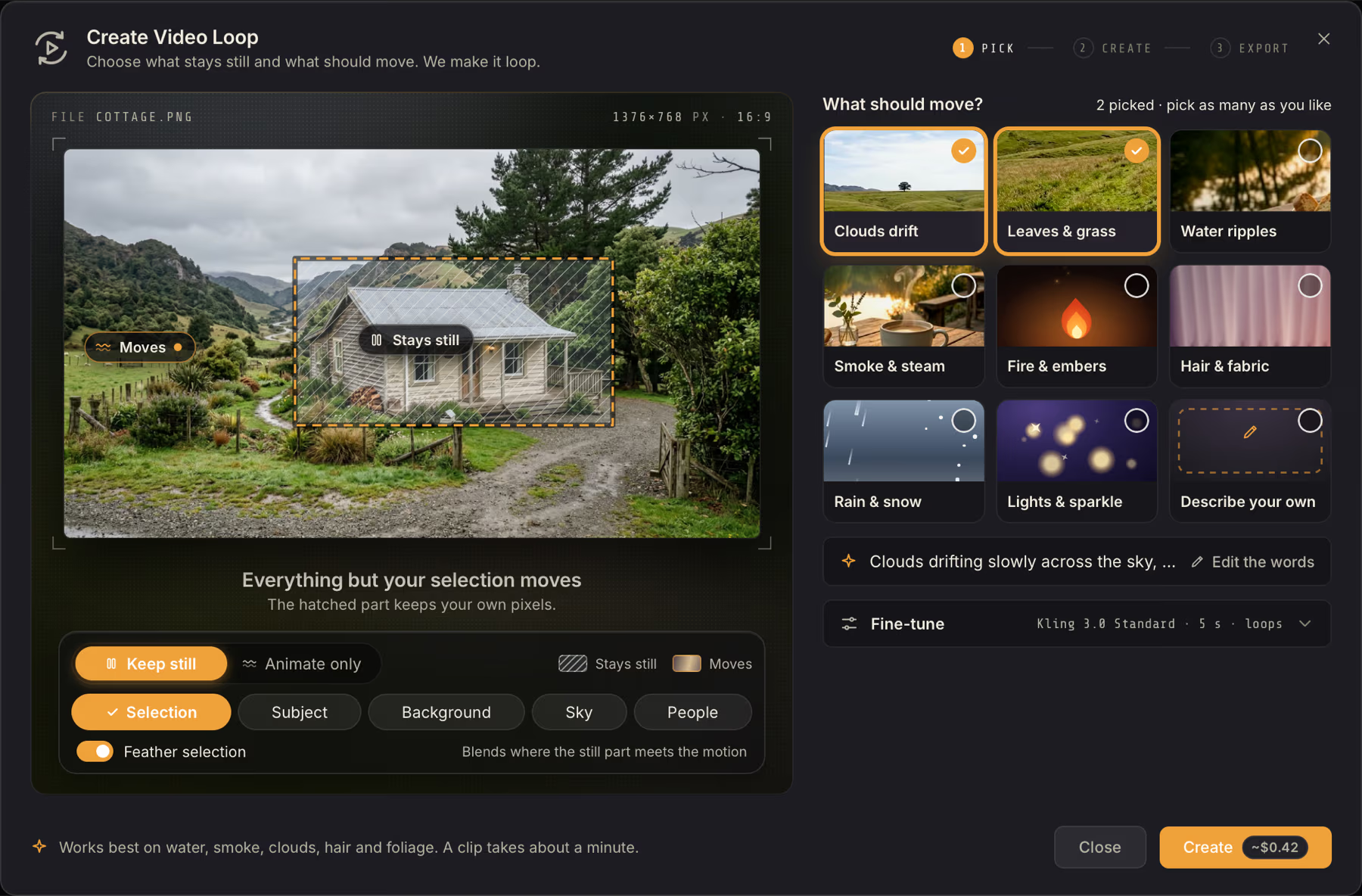
Generate Video Loop (Cinemagraph)
Pick what elements should stay still and what should move, then describe the motion: smoke drifting, water rippling, leaves swaying. Video Loop, also known as a cinemagraph, animates your photo into a seamless clip, then exports it as MP4, WebM, GIF, animated WebP or animated AVIF. The part you froze is your own pixels, untouched, and the clip is lined up with the photo so the background doesn't wander.
Choose the still part from your selection, Subject, Background, Sky or People, or flip it around and pick the only part that moves. Motion cards write the prompt for you, and the dialog suggests a model for what you're animating: MiniMax H3 for smoke, water, fire and lights, Kling for leaves and hair. Feather selection softens the edge between frozen and moving.
Find it under Image ▸ Create Video Loop…, or search for “cinemagraph”, “animate” or “loop” with ⌘K. Pick the model in Preferences ▸ Models. Video Loop runs in the desktop app, and each clip is priced before you start.
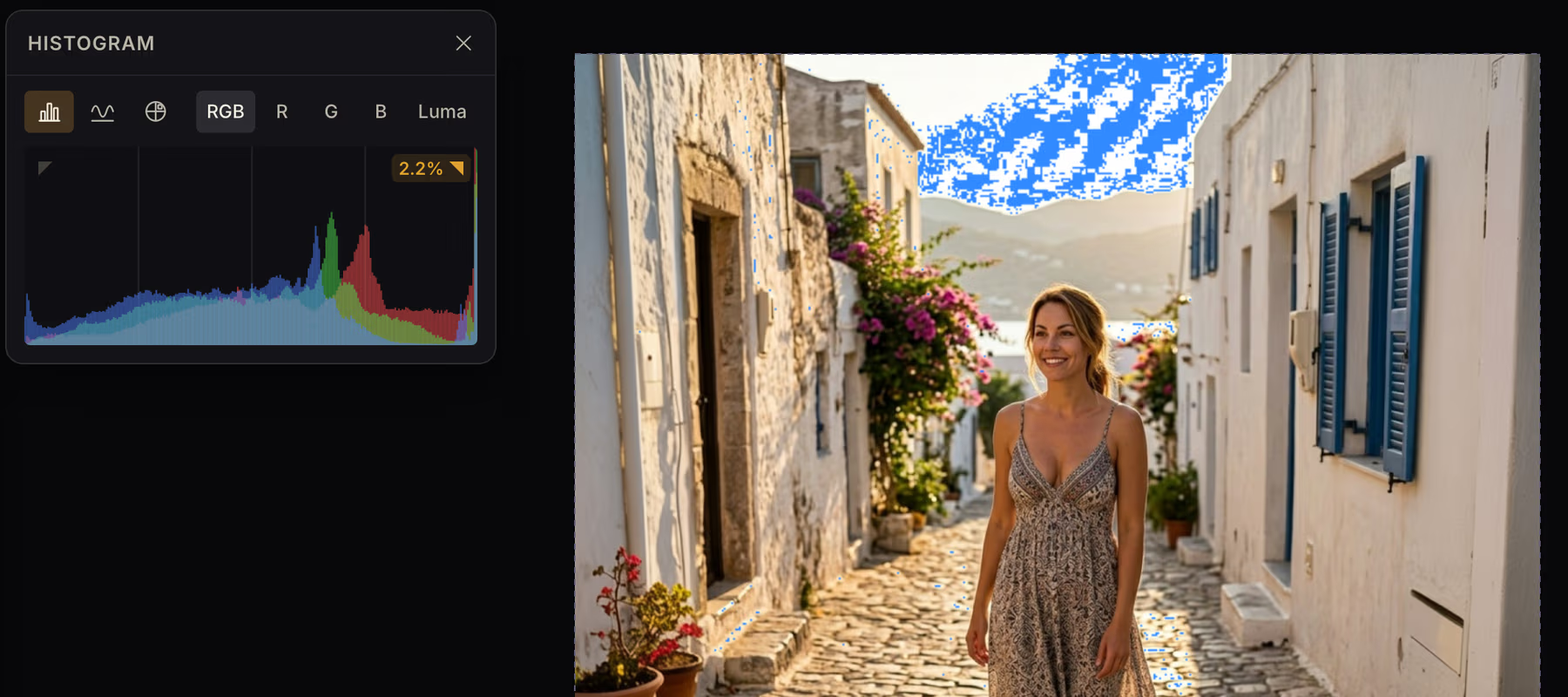
Histogram, Waveform and Vectorscope
A movable card that reads the picture you're looking at, or just your selection. Flip between a Histogram, a Waveform and a Vectorscope, and switch channels. Clipped shadows and highlights flash on the picture (highlights in blue, since white would vanish on a white sky). While a live filter's panel is open, a faint outline shows where the histogram was before.
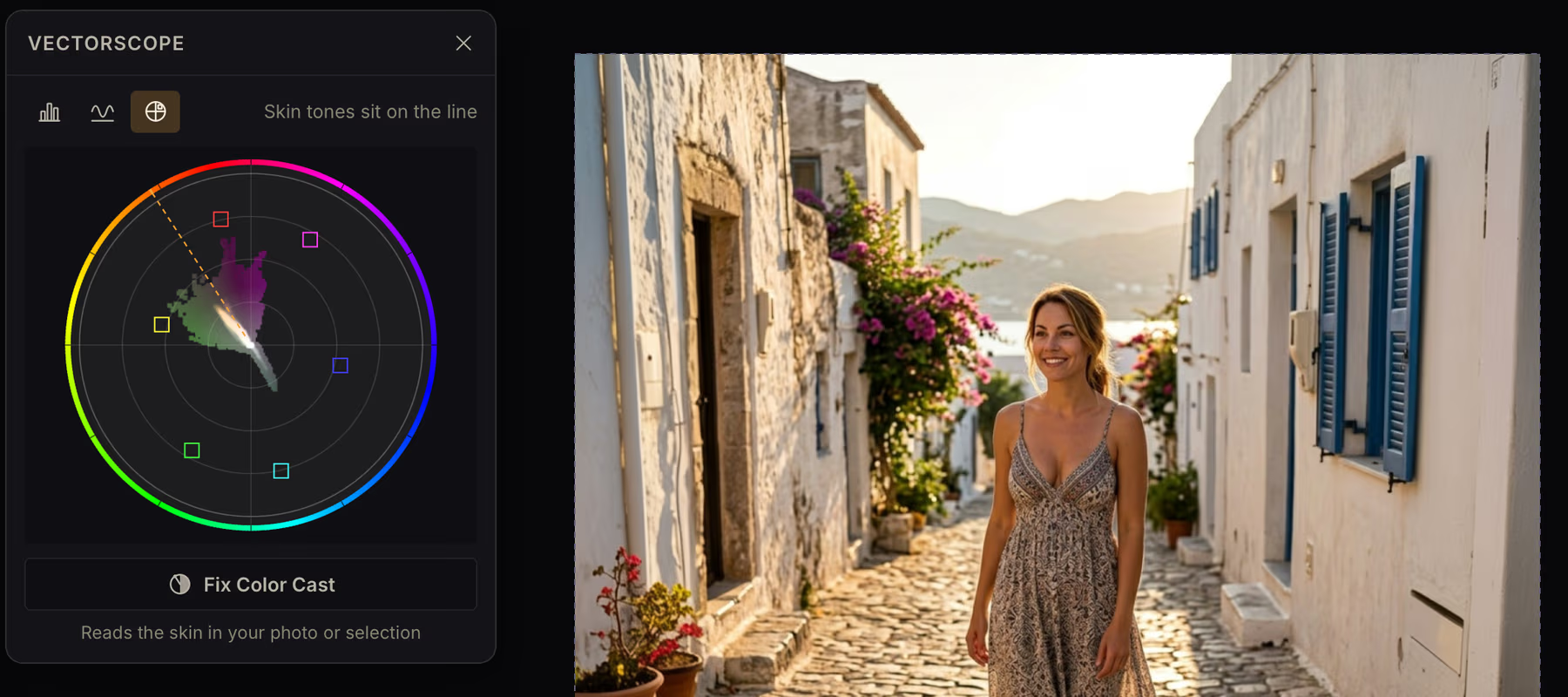
The Vectorscope is drawn like the real instrument, with a hue ring, the skin-tone line and a trace colored by your picture's own hues. A Fix Color Cast button underneath measures the skin in the photo and pulls it onto that line.
Press Shift+H, choose View ▸ Histogram, or use the pin on the Levels and Curves panels.
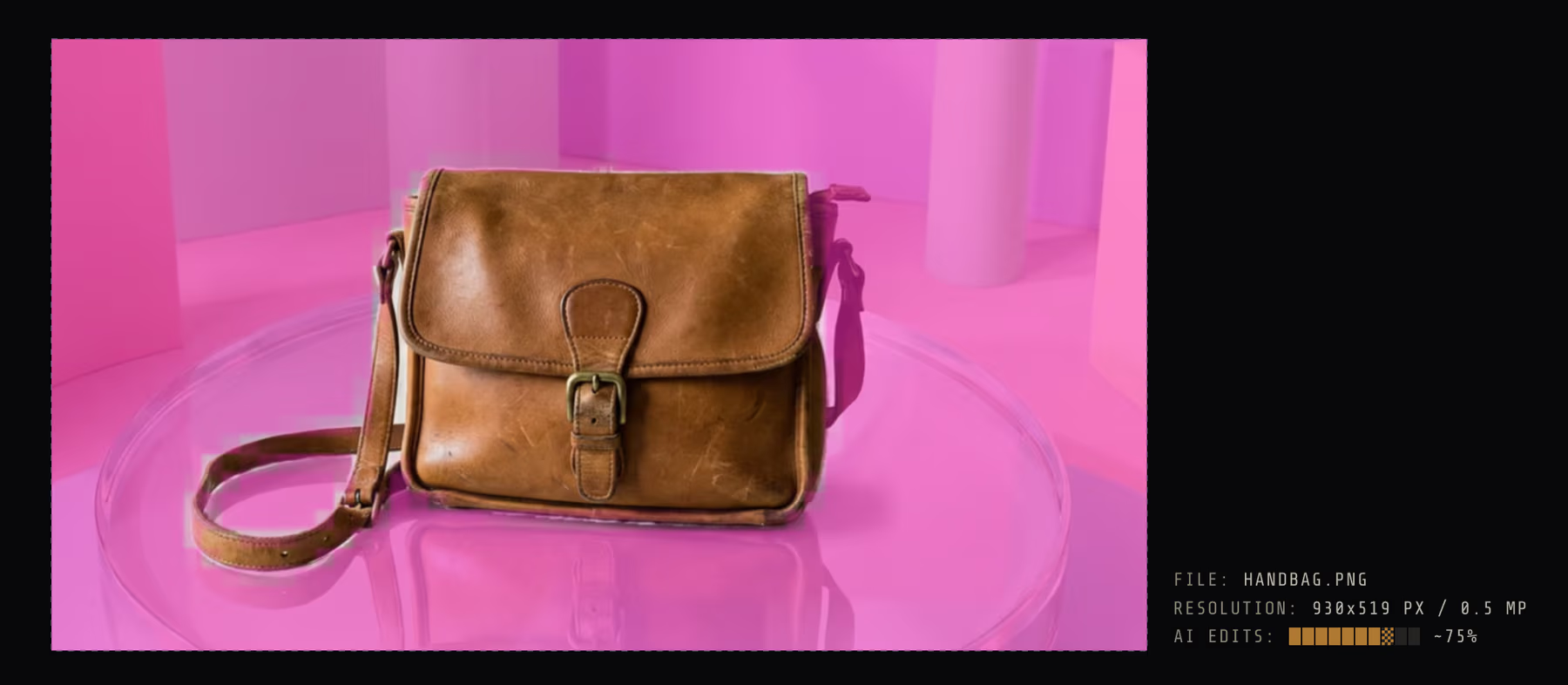
See how much of an image was made by generative AI
The image info beside the canvas now has an AI edits meter with an approximate percentage. View ▸ AI Overlay shows where the AI pixels are. Flatten, Merge Down and Rasterize Group give the result the origin of whichever layer supplies most of it, so a merged layer that holds AI never reads as untouched.
Open a file and an Origin row tells you what it declares about itself. DepthField Photo now reads C2PA Content Credentials, the signed provenance data cameras and AI tools embed in files, as well as standard metadata, and tells you when a signature is invalid. A file that declares itself AI-generated also counts toward the meter and shows up in the overlay. On the way out, JPEG, PNG and WebP exports are tagged with the standard “digital source type” when they hold AI-made content, and left alone when they don't. Preferences lets you turn that off, or count AI enhancement (Upscale, Supersharp and friends) in the percentage.
Improved
-
A Marquee that follows your keys mid-drag
Hold Shift, Alt or both at any point while you drag a Marquee to add, subtract or intersect, and let go to change your mind. Hold ⌘ to draw a square or circle, and the new From Center toggle in the options bar draws outward from where you pressed. Pressing no longer deselects first, which is what lets the mode change mid-drag.
-
Double-click to fit
With the Hand tool, or while holding Space over any tool, double-click to fit the picture to the window.
-
Ideogram 4.5 Edit replaces Ideogram V4
V4's edit mode restyled the whole picture and only loosely followed the change you asked for. 4.5 edits what you describe and leaves the rest of the pixels exactly as they were. It's now the recommended model for editing with text.
-
More ways to run the default models with your own key
Muse Image, GPT Image 2.5 Sunburst, Grok Imagine Image 2, MAI Image 2.5 and Ideogram 4.5 now also run through Wavespeed and Replicate keys, not just fal. Runware is also new in Preferences ▸ Connections.
-
Connections say what's missing
Instead of a row of badges for everything a provider can do, each card shows how many models it offers and either a checkmark or a warning that names the features it can't run. You'll know before you pick a provider that you'd lose Supersharp or Denoise.
-
Update dialog shows what's new
A See changes button opens the release notes for the version you're about to install. AI Provenance also shows the seed a vendor reports for a generated image, when it reports one.
-
Update checks run once a day, and are counted
DepthField Photo now checks for updates at most once a day instead of on every launch. The check tells us which version you're running and whether it's licensed or in the free trial, as a per-day tally: no ID, no account, nothing that ties it to you or your Mac. It's how I see how many people use each version. The privacy policy spells it out.
Fixed
- ⌘K search results no longer get squashed to a fifth of their height, which hid most of the list.
- When the GPU resets, the canvas now recovers on its own and keeps retrying quietly. You only see a message if it can't, with a button to send a report.