
0.6.0
Relight Scene
Relight Scene lets you move the light around a photo and render it photoreal, Auto-Align snaps an AI result back onto your picture, and you can now check for updates by hand.
New
Relight Scene with AI
Move the light, not the sun. Place up to three lights on your photo and drag them where you want them: to the side, in front, or behind the subject for a rim of light. Each light has its own Color, Brightness, Softness and Distance, and can shine through leaves, blinds or a window. A sketch of the result updates live as you drag, free and on your own Mac.
When it looks right, Render sends the photo to an AI edit model along with a map of your lights, so the result follows where you put them. 31 looks across Studio, Natural, Interiors and Mood are one click away, each shown as a real render, and hovering one tries its lights on your own picture. If the sketch is already good enough, Keep sketch adds it as a new layer instead, also free.
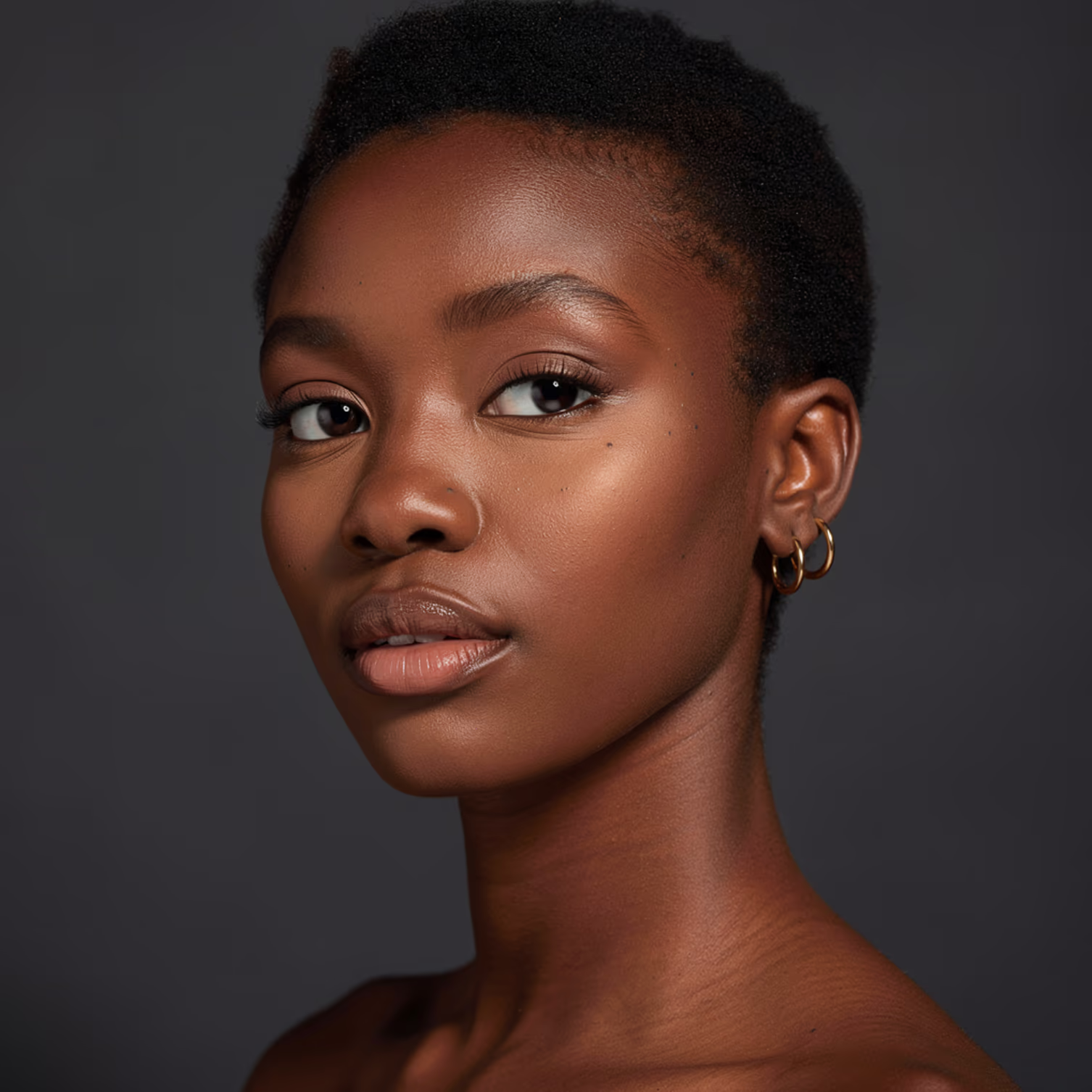 Before
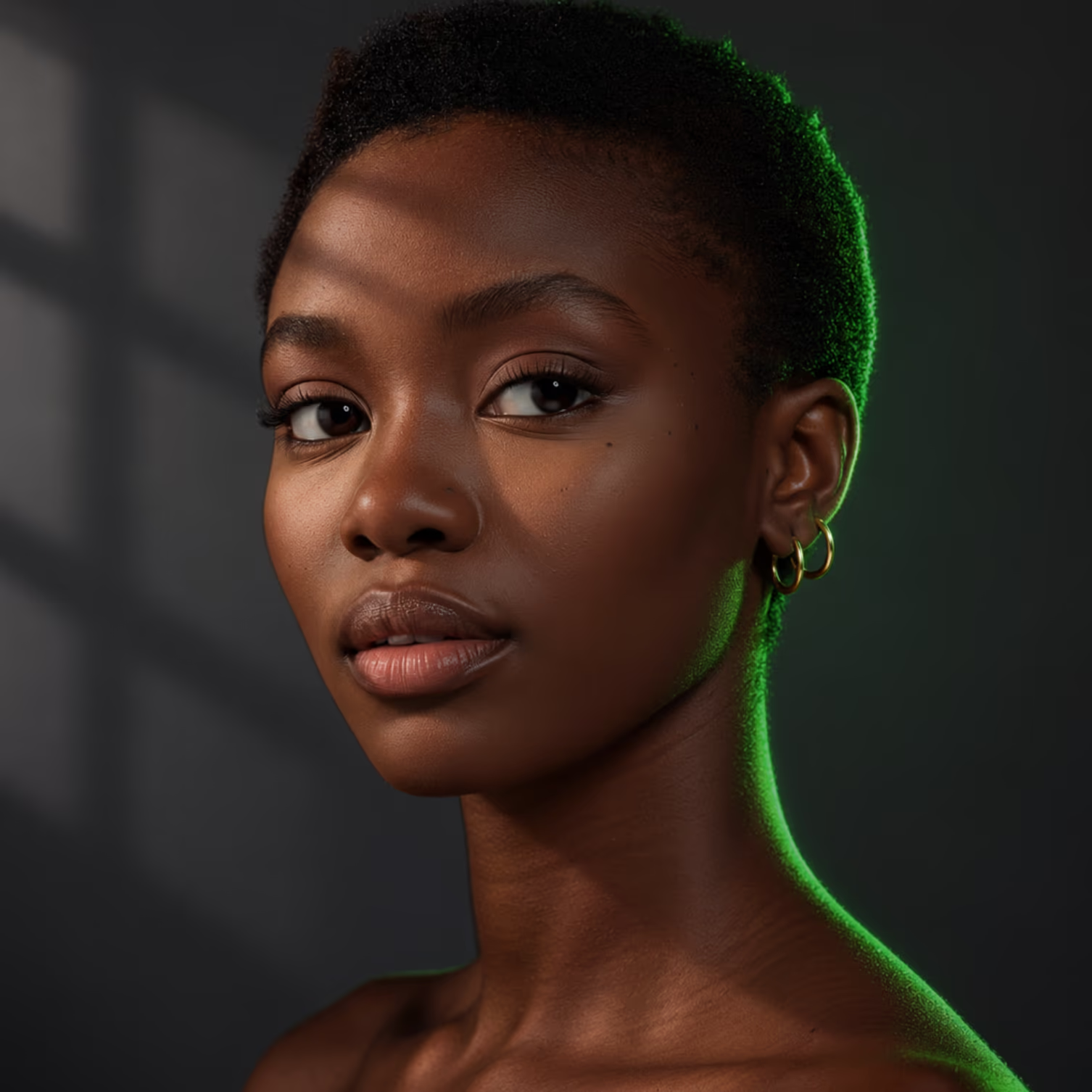 After
Opening it costs nothing; only Render spends, and the button shows the price. Find it under Effect ▸ Light & Tone or with ⌘K. The older depth-band Relight is now called Relight Depth.
Auto-Align to Image Below
AI models often hand a picture back slightly shifted or stretched, so the result won't sit exactly on your original. Auto-Align measures how far it drifted and moves and resizes the layer to line up with the picture beneath it, then puts it on whole pixels. Nothing is resampled, it's one undo step, and when it can't tell where the layer belongs it says so rather than guessing.
Use Layer ▸ Auto-Align to Image Below, the layer's context menu or ⌘K. The Supersharp, Denoise and Restore Photo previews get an Auto-Align button too, with Undo Auto-Align to put the result back where the model placed it.
 Before
 After
Improved
-
Check for Updates on demand
Check for Updates is now in Preferences ▸ About, the File menu and ⌘K. It asks right away instead of waiting for tomorrow's automatic check, and always answers: the update dialog, a “You’re up to date” notice, or an error.
-
Clearer handles on radial Gradient Fill and Vignette
The square handle now scales and turns the ellipse together (hold Shift to snap to 15°), and the round handle slides along its axis to change only the shape. Before, one handle did both rotation and shape, and resizing was limited by the current shape.